Learn the typography tracking definition, how tracking differs from kerning, and when to use each — a practical guide for designers and type enthusiasts.
If you’ve ever looked at a logo and thought something feels off — even when you can’t put your finger on it — there’s a good chance the culprit is spacing. Specifically, letter spacing. And the two tools designers reach for most are tracking and kerning. They sound similar, they even do similar things, but they solve different problems. This post breaks it all down, starting with the typography tracking definition and moving into how to use it well.
What Is Tracking in Typography?
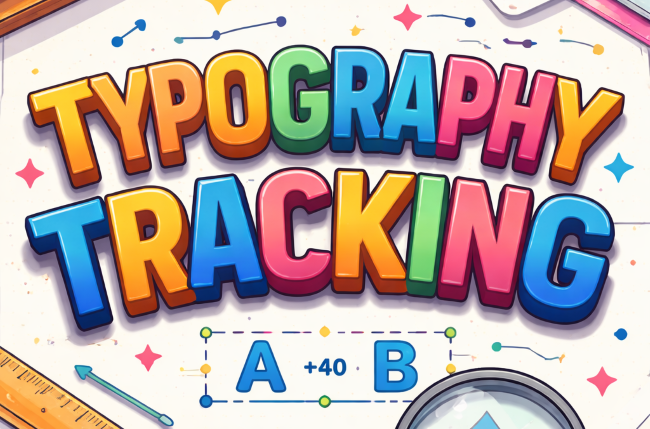
Tracking in typography refers to the uniform adjustment of spacing across a range of characters, words, or an entire block of text. Unlike kerning, which targets the space between specific letter pairs, tracking affects every character in the selected text equally.
Think of it like adjusting the air pressure in all four tyres at once, versus pumping up just one that’s running low. Tracking is the global adjustment; kerning is the surgical fix.
When a designer increases tracking on a heading, every letter moves apart by the same amount. When they decrease it, the whole word or paragraph tightens up. This gives type a different visual density, rhythm, and mood — all without touching the underlying typeface.
Kerning vs Tracking: What’s the Actual Difference?
This is where a lot of people get mixed up, so let’s be precise.
Kerning definition: Kerning is the adjustment of space between two specific adjacent characters. The classic example is the “AV” combination — because of their diagonal shapes, they naturally sit too far apart. Kerning pulls them closer so the spacing feels optically even.
What is tracking in typography: Tracking, by contrast, applies to groups of characters. You select a word, a sentence, or a text block, and adjust all spacing uniformly.
Here’s a practical way to remember it: if you’re fixing a specific awkward pair of letters, that’s kerning. If you’re changing the overall feel or density of text, that’s tracking.
Most professional font files come with built-in kerning tables — pre-programmed spacing adjustments for common problematic pairs. Tracking has no such automation. Designers apply it deliberately, based on context and intent.
Why Tracking Actually Matters
Spacing isn’t just a fine detail. It affects legibility, tone, and how text integrates with the design around it.
At small sizes: Increasing tracking slightly opens up tight letterforms and makes text easier to read at small sizes, especially in print or low-resolution screens.
At large display sizes: Very large type often needs negative tracking (tightened spacing) to feel cohesive. Without it, headlines can look like a row of separate letters rather than a single word.
Uppercase text: All-caps text almost always benefits from increased tracking. The uniform height of capital letters creates a dense block — adding space lets each character breathe and the text reads more cleanly.
Atmosphere and tone: Loose tracking gives text an airy, luxury, or editorial feel. Tight tracking creates urgency, density, or mass-market energy. Look at the typography in any high-end fashion brand versus a fast food chain — the spacing alone communicates something.
For a good visual example of how tracking shapes brand identity, look at how the Pretendard font uses spacing across its weight range. The same typeface reads completely differently depending on tracking context.
When to Use Tracking vs Kerning
This is where a lot of beginner designers make mistakes. They try to fix bad kerning with tracking, or ignore tracking entirely when it would solve the problem faster.
Use tracking when:
- You want all-caps or small-caps text to breathe more
- Display text at large sizes looks too loose or too tight overall
- You’re setting a brand wordmark and need a specific spatial feel
- Body text at small sizes needs to open up for legibility
Use kerning when:
- A specific letter pair looks visually uneven (AV, WA, To, etc.)
- You’re finalizing a logo or headline where optical precision matters
- The font’s built-in kerning table isn’t handling a pair well
In practice, you often use both. You might track a headline tighter, then kern a few specific pairs that still don’t sit right. Good type work is layered.
How Much Tracking Is Too Much?
There’s no universal rule, but there are useful conventions.
For body text, most typographers recommend staying within a range of -10 to +10 units (in most design tools, tracking is measured in thousandths of an em, or sometimes in points). Small adjustments have a big cumulative effect across paragraphs.
For headlines and display text, you have more room to move. Negative tracking of -20 to -50 units is common for bold, large type. All-caps headings can go up to +100 or more before it starts looking like it’s spelling out a ransom note.
The test is always visual. Trust your eye more than the number.
Tracking in Practice: Tools You’ll Use
In Adobe Illustrator and InDesign, tracking is in the Character panel and measured in thousandths of an em. In Figma, it’s called “letter spacing” and measured in pixels or percentages. CSS uses letter-spacing with values in px, em, or rem.
Regardless of the tool, the concept is identical: you’re adding or removing space between every character in a selection, uniformly.
One thing worth knowing: in CSS, letter-spacing adds space after each character, including the last one. This can affect the alignment of centered text. If that matters in your project, it’s something to account for.
A Note on Typeface Choice
Tracking and kerning adjustments can only do so much. Some typefaces have generous built-in spacing and behave well at many sizes. Others are optimized for specific use cases — text faces are built for body copy, display faces are built for headlines.
If you’re reaching for heavy tracking to fix a spacing problem, it’s sometimes a sign that the font isn’t right for the context. Fonts designed with open apertures and generous proportions — like those built for editorial use — usually need less intervention.
That said, playing with tracking is one of the fastest ways to see how much personality lives in spacing alone. Take a geometric sans like Mustica Pro and try it at various tracking values — the same letterforms can feel modern and airy or compact and functional just by adjusting spacing.
Key Takeaways
- Tracking adjusts spacing across all characters in a selection — uniformly.
- Kerning adjusts space between specific character pairs — surgically.
- Tracking affects tone and legibility. All-caps, display text, and small sizes benefit most from intentional tracking choices.
- Tight tracking at large sizes, open tracking at small sizes — that’s the general direction, but context always wins.
- Use both tracking and kerning together for polished type work. They’re complementary, not interchangeable.
Good spacing is mostly invisible when it’s done right. But when it’s wrong, your reader feels it even if they can’t name it. Getting comfortable with tracking is one of the fastest ways to level up the quality of your typographic work.