Understand leading in typography — what it is, how it works, and how to set it correctly for body text, headlines, and everything in between.
There’s a reason some text feels effortless to read and other text makes you work for every line. A lot of that comes down to leading in typography. It’s one of those fundamentals that doesn’t get talked about as much as font choice or color, but it quietly controls whether your text invites people in or pushes them away.
This post covers what leading is, why it matters, and how to make good decisions with it — whether you’re designing a website, a printed book, or a brand identity.
What Is Leading in Typography?
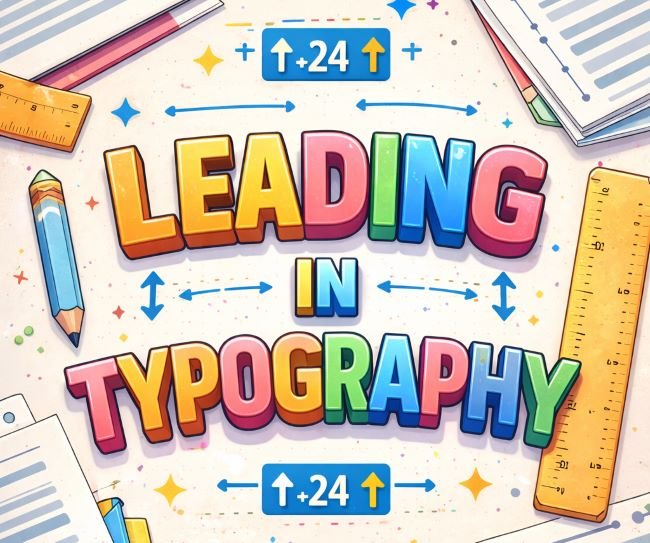
Leading (pronounced “ledding,” like the metal) is the vertical distance between lines of text. More precisely, it’s measured from the baseline of one line to the baseline of the line above it.
The name comes from the strips of lead that typesetters used to physically separate lines of type on a printing press. Those strips are long gone, but the term stuck.
In most design software today, leading appears as “line height” or “line spacing.” In CSS, it’s line-height. The concept is the same regardless of what the tool calls it: you’re controlling how much vertical space sits between lines of text.
Why Leading Matters More Than You Think
Set it too tight and lines of text crash into each other. Readers lose their place when they scan back to the start of the next line. The text feels dense and uncomfortable, like standing too close to someone in a lift.
Set it too loose and the lines lose their relationship with each other. The text stops reading as a connected block and starts feeling like a list of unrelated sentences. Readers have to consciously hunt for the next line.
Good leading is the middle ground where none of this draws attention to itself. The reader just… reads.
This is why leading is sometimes called the most important typographic setting you can make. Get it right and it disappears. Get it wrong and it’s all anyone notices, even if they can’t name what’s bothering them.
The Relationship Between Leading and Type Size
Leading and type size are connected. Larger text generally needs tighter leading. Smaller text usually needs more breathing room.
Here’s a rough framework that holds up in most situations:
For body text: A leading value of 1.4 to 1.6 times the font size works well. So if your body text is 16px, leading somewhere between 22px and 26px is a reasonable starting point. Many designers default to 1.5 and adjust from there based on the typeface.
For headlines and display text: Tighter leading is almost always better. At large sizes, the default line height in most software looks too loose. A ratio closer to 1.1 to 1.2 is common for bold headlines, sometimes even lower for very large type. Words need to feel like they belong together, not like they’re floating in separate lanes.
For captions and small text: More leading helps. Small type is harder to read, and a little extra vertical space gives each line room to be found easily. Aim for 1.5 to 1.7 at very small sizes.
These are starting points, not rules. The typeface you’re using, the line length, and the overall context all influence what looks right.
How Typeface Affects the Right Leading
Not all fonts sit the same way on a line. Two fonts at identical size and leading can feel completely different because of differences in x-height (the height of lowercase letters) and ascenders/descenders (the parts of letters that go above and below the main body).
A font with a tall x-height, like many sans-serif typefaces designed for screen use, fills more of the vertical space between lines. It will feel tighter at the same leading value than a font with a smaller x-height. You may need to add a few extra units of leading to give it room.
Fonts with long descenders (the tail on a “g” or “p”) need more leading too. When descenders from one line get too close to the ascenders of the line below (the tall strokes in “h” or “k”), they can visually collide and make the text hard to parse.
This is why it pays to look at your actual body text in context before finalizing a leading value. A paragraph set in a compact typeface like Garet will need different treatment than the same paragraph in a typeface with generous proportions.
Leading in Web Design: Line-Height in CSS
In CSS, leading is controlled with the line-height property. It can be set in several ways:
- Unitless number:
line-height: 1.5— this is a multiplier of the element’s font size, and it’s the most flexible approach because it scales automatically if the font size changes. - Pixels:
line-height: 24px— fixed, doesn’t scale. - Em or rem:
line-height: 1.5em— similar to the unitless approach but with some inheritance quirks.
The unitless value is widely recommended for body text because it adapts when users change their browser font size or when you change the base font size in your CSS. It keeps the ratio intact without you having to update two values at once.
One thing to know: CSS line-height distributes the space above and below each line equally (called “half-leading”). This is slightly different from how print software handles it, where leading is measured from baseline to baseline and the space sits below the line. The end result looks similar, but it can matter for precise vertical alignment work.
Common Leading Mistakes and How to Fix Them
Using the default and moving on. Software defaults for leading are set for average conditions, which means they’re often wrong for your specific font, size, and context. Always check it intentionally.
Setting the same leading for all text sizes. Headlines need different treatment than body text. If you copy a leading value from one to the other, at least one of them will look off.
Ignoring line length. Longer lines need more leading. When the eye has to travel further across a line, the return trip to the start of the next line is more likely to land on the wrong line without enough vertical space to guide it. Short lines can get away with tighter leading. This connection between line length and leading is sometimes called the “typographic triangle.”
Adjusting leading to fix a different problem. If text feels cramped, the instinct is to add leading. But sometimes the real issue is the font size, the line length, or the margins. Adding leading when it isn’t needed just makes text feel floaty and disconnected.
Leading in Print vs. Screen
Print and screen handle leading differently in a few ways worth knowing.
In print, leading is measured precisely in points. The text sits on a grid, and the leading value controls exactly where the baseline falls. Designers working in InDesign or similar tools work with this directly.
On screen, the browser handles line-height rendering, and different operating systems and font rendering engines can make the same value look slightly different. This means web designers often need to test across browsers and systems rather than trusting a single preview.
Also worth noting: print design tends to use slightly tighter leading than web design, partly because print resolution is much higher and partly because printed pages have fixed dimensions. On screen, where users scroll and the viewport size varies, a little more breathing room in line height generally improves the reading experience.
A typeface like Bricolage Grotesque designed with variable weight axes, for example, may need different leading treatment depending on whether it’s being used in a digital editorial layout or a printed document.
A Simple Process for Setting Leading
Rather than guessing, here’s a reliable way to approach it:
- Set your font size first.
- Start with a leading value of 1.5 times the font size for body text.
- Set a paragraph of real text (not Lorem Ipsum if you can help it) and read it.
- Ask: does my eye flow easily from the end of one line to the start of the next? If not, adjust up or down in small increments.
- Check headlines separately. Tighten leading until the lines feel like one cohesive unit, not separate rows.
- Test at different viewport sizes or print sizes to make sure it holds.
That’s it. The process is visual and iterative, not formula-driven. Your eye is the final judge.
Key Takeaways
- Leading in typography is the vertical space between lines of text, measured baseline to baseline.
- The name comes from physical lead strips used in traditional typesetting.
- Body text generally reads best at 1.4 to 1.6 times the font size. Headlines need tighter leading, often 1.1 to 1.2.
- Typefaces with tall x-heights or long descenders may need more leading than compact ones.
- In CSS, use a unitless
line-heightvalue for body text so it scales cleanly. - Long lines need more leading. Short lines can handle less.
- Always set leading intentionally. Software defaults are a starting point, not a final answer.
Leading rarely gets the credit it deserves, but it’s doing more work than most people realize. When it’s right, reading feels natural. When it’s wrong, the text feels like it’s fighting the reader. Getting comfortable with it is one of the best investments you can make in your typographic skills.