Learn how after effects kinetic typography works, from core techniques and tools to font choices and real kinetic typography examples that show what great motion text looks like.
Text that moves in sync with a voiceover, words that slam onto screen on a beat, letters that dissolve into the next thought before you’ve finished reading the last one. That’s after effects kinetic typography, and it sits at the intersection of motion design, sound, and visual communication. If you’ve ever watched a lyric video, a brand film, or an explainer video and found yourself pulled forward by the words themselves, you’ve seen what this technique does at its best. This post covers what kinetic typography actually is, how After Effects handles it, and what separates work that lands from work that just moves.
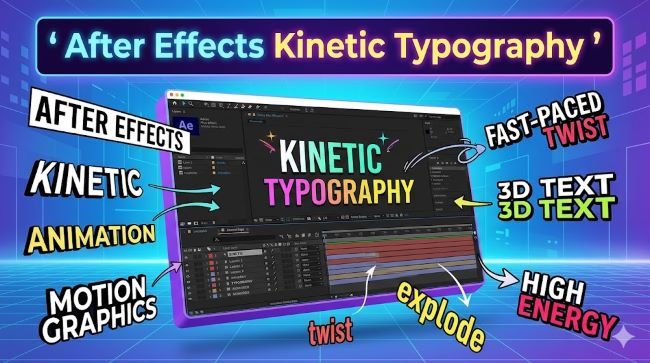
What Is Kinetic Typography?
Kinetic typography is animated text. The word “kinetic” means relating to motion, and in this context it describes type that moves, transforms, appears, or disappears as part of a timed sequence, usually in sync with audio.
The goal isn’t motion for its own sake. Good kinetic typography uses movement to reinforce meaning. A word that grows as someone raises their voice. Text that scatters when an idea breaks apart. Letters that arrive one at a time to build suspense. The animation is doing interpretive work, not just decoration.
The technique has roots in experimental film from the 1950s and 60s, but it became a widespread commercial format with the rise of digital video tools, music videos, and online content. Today it appears in:
- Social media video content
- Lyric videos and music promotion
- Brand and product films
- Explainer and educational videos
- Title sequences for film and television
- Presentation and pitch materials
Why After Effects Is the Standard Tool for Kinetic Typography
After Effects is Adobe’s motion graphics and compositing software. It’s the industry standard for typography animation for a few reasons.
First, it gives you frame-level control over every property of a text layer: position, scale, rotation, opacity, color, tracking, kerning, skew, and more. You can animate any of these properties independently or together using keyframes.
Second, After Effects has a dedicated text animation system built around something called Text Animators. These let you apply animation properties to ranges of characters within a text layer rather than the whole layer at once. This is what makes it practical to animate individual letters, words, or lines without creating a separate layer for each one.
Third, the expressions system in After Effects lets you connect animation values to other values using code, which opens up techniques like text that reacts to audio amplitude, characters that animate based on a slider control, or timing that’s driven by a master null object. These aren’t beginner-level tools, but they’re part of why After Effects scales from simple text pops to complex typographic systems.
Fourth, After Effects integrates with the rest of the Adobe ecosystem. If your fonts live in Adobe Fonts, they’re available inside After Effects. If your compositions need to go into Premiere Pro, the Dynamic Link workflow connects them without re-rendering.
Core Techniques in After Effects Kinetic Typography
Working With Text Animators
Text Animators are the engine of most kinetic typography work in After Effects. Here’s how they function in practice:
You add an Animator to a text layer from the Animate menu in the timeline. Each Animator has a Selector (which controls which characters are affected and to what degree) and one or more Properties (which control what changes, such as position, opacity, or scale).
The Range Selector is the most common type. It defines a start and end point within the text, and you animate those points across time to create the effect of characters entering or exiting. A simple fade-in where each letter appears in sequence is built by animating the Selector’s Start or End value from 0% to 100% while the Animator has an Opacity property set to 0.
The Wiggly Selector adds randomness. Instead of a clean sweep from one end of the text to the other, the Wiggly Selector affects characters at random intervals, which is useful for effects that need to feel organic or chaotic.
Keyframing Individual Properties
For animations where you want precise control over individual words or phrases, creating separate text layers and keyframing their position, scale, and opacity is often cleaner than working within a single Animator. This is especially true for after effects kinetic typography synced to speech, where specific words need to hit on specific frames.
The workflow here is straightforward: set your playhead at the moment a word should appear, set a keyframe for the property you’re animating, move forward to where the animation should complete, and set the end keyframe. Apply Easy Ease to both keyframes (F9) to get a smoother motion curve, then adjust the curve in the Graph Editor to dial in the feel.
Using the Graph Editor for Better Motion
One of the most visible differences between beginner kinetic typography and professional work is the quality of the motion curves. Linear animation (constant speed from start to finish) looks mechanical. Motion that accelerates and decelerates naturally looks intentional.
The Graph Editor in After Effects gives you direct control over the speed of an animation at every point in time. Pulling the curve handles gives you ease in, ease out, or a custom curve that fits the energy of the moment. A word that arrives fast and settles into place needs a different curve than a word that drifts slowly onto screen.
Syncing to Audio
For kinetic typography examples that use a voiceover or music, audio sync is the foundation of the entire piece. After Effects lets you view audio waveforms directly in the timeline. You can also use markers to flag the moments where key words or beats fall.
The workflow most motion designers use:
- Bring the audio into the composition first.
- Listen through and place composition markers at the key moments where words need to hit.
- Build the text animations using those markers as timing anchors.
- Refine the easing and motion curves once the timing is locked.
Some designers use third-party tools like Flow (by Motion Array) for easing curves, or BeatEdit for automatic beat detection in music-driven pieces. These speed up parts of the workflow but aren’t required to get good results.
Choosing the Right Font for Typography Animation
Font choice matters more in motion than in static design, for a few reasons.
Weight and contrast read differently in motion. Very thin strokes can flicker or feel fragile when text is small or moving fast. Heavier weights tend to hold up better in animated contexts, especially at lower resolutions or small screen sizes.
Geometric and grotesque sans-serifs are workhorses. They’re clean, they read clearly at a range of sizes, and their lack of ornamentation keeps the focus on the motion rather than the letterform details. Most commercial kinetic typography you see uses this category of typeface.
Display and decorative fonts work for specific effects. If the animation is slow and deliberate, giving the viewer time to appreciate the letterforms, a more complex typeface can add a lot. If the animation is fast-paced and high-energy, a simpler typeface usually serves better.
Variable fonts open up new animation possibilities. A variable font contains a continuous range of weights, widths, or other axes within a single font file. In After Effects (and increasingly in CSS for web-based typography animation), you can animate between these axes, creating effects where the weight of text shifts as it moves. A word that starts thin and bulks up as it settles into place is one example.
For fast-paced, high-impact kinetic typography work, a clean and versatile sans-serif like Oswald holds up well across a range of animation speeds and screen sizes. Its condensed proportions also make it efficient for fitting longer phrases into tight compositions.
For more expressive work where the letterforms themselves contribute to the mood, Amatic brings a handcrafted quality that works well in slower, more intimate typography animations where you want the text to feel personal rather than produced.
Kinetic Typography Examples Worth Studying
Looking at strong examples is one of the fastest ways to develop a sense of what works. A few directions worth exploring:
RSA Animate style: Whiteboard-style drawings with text that appears in sync with a recorded lecture or talk. Clean, educational, focused entirely on clarity.
Music lyric videos: The broadest category. The best ones treat the typography as a direct expression of the song’s emotional content, not just a subtitle track. Look for examples where the animation style shifts with the mood of the track.
Brand film title sequences: Agencies like Buck, ManvsMachine, and Elastic produce title sequences that push what’s possible with typography animation. These are worth studying for how they integrate type with motion graphics and live action.
Experimental typographic film: Artists like Jonathan Barnbrook have used typography animation as a primary medium for exploring language and meaning. This end of the spectrum is less commercially applicable but shows the full expressive range of the format.
The common thread in strong kinetic typography examples is that the motion serves the meaning. When you can’t imagine the words landing as hard without the animation, the animation is doing its job.
Key Takeaways
- After effects kinetic typography is animated text designed to move in sync with audio or to reinforce the meaning of words through motion.
- After Effects is the industry standard tool because of its Text Animator system, keyframe control, Graph Editor, and audio sync capabilities.
- Text Animators let you animate individual characters or ranges within a single text layer, which is the core of most kinetic typography work in After Effects.
- Motion curves separate mechanical-looking animation from professional work. The Graph Editor is where that quality gets set.
- Font choice affects how well text reads in motion. Heavier, simpler typefaces hold up better at speed. Variable fonts open up axis-based animation possibilities.
- Study kinetic typography examples across categories: lyric videos, brand films, RSA Animate style, and experimental work each show different aspects of what the format can do.
Kinetic typography rewards patience. The gap between text that just moves and text that communicates through movement is mostly about intentionality: understanding why each word animates the way it does, and making sure the motion is earning its place.